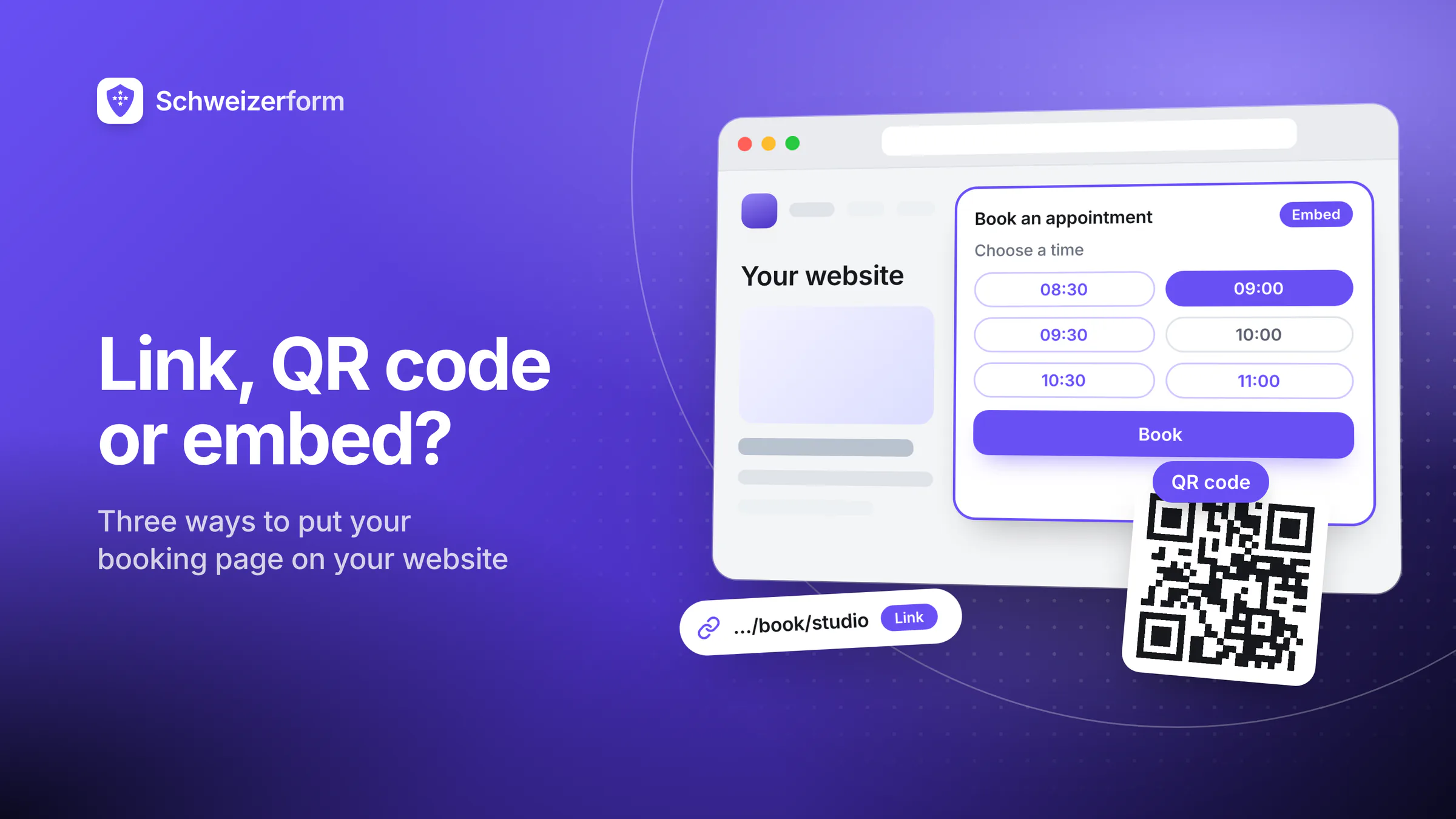
You have set up online appointment booking, and now comes the practical question: how do clients actually find it? A booking page on your website is only one answer. A plain link in your e-mail signature, a QR code on the shop window or an embed inside your own web page all put the same page in front of clients, with very different effort and very different pitfalls. This guide compares the three and shows when each one pays off.
Everything below applies to a booking page, but just as well to a contact form, a short test or a document request. If you embed appointment booking, you also pull a page from another provider into your own site, and that has consequences for cookie banners, trackers, mobile layout and page speed. We cover those first, and then show how Schweizerform handles each option.
Who this is for
Swiss practices, workshops, associations, schools and municipalities that want clients to book without phoning. You will learn where a link, a QR code and an embed each work best, how to print a QR code that scans, what an iframe means for your cookie banner, and how to count which channel brings bookings without tracking anyone.
Link, QR Code or Embed: The Three Options at a Glance
All three deliver the same booking page. The difference is where the client is when they decide to book: at a screen reading your e-mail, standing in front of your shop window, or already browsing your website.
| Plain link | QR code | Embed on your website | |
|---|---|---|---|
| Effort | Minutes: paste one address | About an hour: generate, size, print, test | Moderate: paste a code into your page; some website builders need a workaround |
| Works best | E-mail signature, Google Business Profile, social profiles, invoices, quotes | Shop window, reception desk, flyers, municipal bulletin, vehicle lettering | A contact or service page that visitors already read before they decide |
| What you need | The address of the booking page | The address as a QR image, plus a printer or a designer | Edit access to your website and, with many tools, a paid plan |
| Pitfalls | Long, unreadable addresses; a link that changes later | Too small, too little contrast, printed before testing; cannot be edited once printed | Your site's own cookie banner and trackers, narrow phone screens, a slower page |
Rule of thumb
Start with the link: it costs nothing and works everywhere. Add a QR code wherever people stand in the real world. Embed only on a page that already gets visitors who look for an appointment.
A Plain Link: the Most Underrated Option
A link is the cheapest channel and one that people often forget to use, although it sits exactly where clients already are. Put it in every place where a client might think "I should make an appointment":
- Your e-mail signature, so every reply to a client carries the booking address.
- Your Google Business Profile: the website link and, where your profile offers one, an appointment link.
- Social profiles: the single link field of the profile rather than a post that scrolls away.
- Invoices, quotes and letters, as a reminder for the next check-up, service or consultation.
- Your website's navigation: a clear "Book an appointment" button that opens the booking page directly.
Make the Link Readable
A long string of letters and digits cannot be read out over the phone, typed from a printed letter or recognised as yours. Use an address you can say aloud. Best is a short address on a domain you control, for example yourcompany.ch/termin, that forwards to the booking page: if you ever change tools, every printed address keeps working. Some booking tools also offer a readable address on their own domain, which beats a random one but still ties your printed material to that tool.
QR Codes: From the Shop Window to the Municipal Bulletin
A QR code turns a printed surface into a link. People scan it at a counter, at a bus stop or while reading the Gemeindeblatt on the sofa, and land on the booking page without typing anything. It works wherever a screen is not at hand:
- Shop window or entrance door, for people who pass while you are closed.
- Reception desk or counter, next to the appointment cards: "Book your next appointment here".
- Flyers, appointment cards and letters, with the code right beside the sentence that asks for action.
- Municipal bulletin or club newsletter, with code and a short address in the notice.
- Vehicle lettering: readable only when the vehicle stands still, so add a short address people can remember.
Size, Contrast and a Test Print
- 1
Choose a stable target
Point the code at an address you will keep, ideally your own short address that forwards to the booking page. A printed code cannot be edited afterwards.
- 2
Pick the size for the distance
As a rule of thumb, the scanning distance is about ten times the width of the code. A code of 2 to 3 cm is fine on a flyer or an appointment card; a shop window needs 10 cm or more.
- 3
Keep contrast and the quiet zone
Use a dark code on a light background, never inverted and never over a photo. Leave a blank border of at least four modules, the small squares the code is built from, on every side.
- 4
Print a test and scan it
Print at the final size on the final material and scan with at least two different phones in the light where it will hang. Glossy surfaces and window glare are the classic failures.
- 5
Print a short address next to it
Some people cannot or do not want to scan. A readable address in plain text below the code is the fallback, and it lets people type it on a computer.
A printed code is hard to take back
Whoever controls the target controls where a printed code leads. Never point a code at a page you might remove, and check public codes now and then: stickers glued over a code are a known trick to send people to someone else's page.
Embedding a Booking Page on Your Website
An embed is, technically, an iframe: a window in your page that shows a page hosted somewhere else. Visitors stay on your site, see your design around the booking widget and book without being sent away. The booking page itself still runs on the provider's server under the provider's address; your page only reserves the space.
Cookies, Consent Banners and Trackers
Embedding does not change what your own website does. Your analytics, your marketing pixels and your cookie banner keep running around the embed, and they remain your responsibility. The embedded page may be clean or not: that is the provider's behaviour inside its frame. If it sets cookies or loads third-party scripts, you have to name that in your privacy notice and, depending on the tools and your visitors, handle consent for it.
Two separate questions
First, what does your own page load: analytics, pixels, fonts, maps? That stays your job whether or not you embed anything. Second, what does the embedded page load? Open it in your browser's developer tools (network tab), look for requests to third parties and for cookies, or ask the provider for a written answer.
Mobile Layout and Page Speed
- Many visitors book from a phone. Open your page on a real phone, with the keyboard showing, and check that the embed uses the full width and nothing is cut off.
- A frame that follows the height of its content avoids a scrollbar inside a scrollbar; a fixed-height frame is simpler but can leave empty space or cut the form off.
- A frame loads a whole extra page. One embed per page, lower down or behind a button, keeps your page fast; some tools load the frame only when the visitor clicks.
- Test the last step too: after booking, the visitor should see the confirmation without having to scroll back up.
What to Put Above the Booking Widget
- A heading in the client's words: "Book a tyre change", not "Booking module".
- Who the appointments are for, how long they take and what to bring.
- Where and how: address, access, opening hours, and whether it takes place on site, by phone or online.
- Your cancellation rule in one sentence.
- A fallback for people who cannot or will not book online: a phone number and a plain link that opens the booking page in its own window.
Measuring Which Channel Works Without Profiling Anyone
You do not need to follow visitors around to learn where bookings come from. Counts per channel are enough: how many people opened the page through the link, the QR code or the website, and how many of them booked. The question is about your marketing, not about individuals.
- Give each channel its own entry point: one address for print, one for the e-mail signature, the embed on the website. Some tools count "QR code" and "website" for you; everything else falls under "link".
- Add one optional question to the booking form: "How did you find us?" with answers such as website, QR code, recommendation, bulletin. It captures what a counter cannot, a recommendation for instance.
- Compare totals over several weeks, not days: a flyer drop or a holiday weekend distorts short periods.
Counts, not profiles
A channel count says "twelve bookings came through the QR code this month". It does not say who they were. That is the level at which you can improve your marketing without building a file on anyone. More in Form analytics without tracking.
How Schweizerform Handles Link, QR Code and Embed
In Schweizerform a booking page, a form, an assessment or a document collection is shared from the Share tab. The link and the QR code are there on every plan; website embedding is a Pro and Business feature (see pricing for the plan limits).
| Option | Free | Pro | Business |
|---|---|---|---|
| Link | Yes | Yes | Yes |
| QR code | Yes | Yes | Yes |
| Website embed | No | Yes | Yes |
| Readable address on the forms domain | No | Yes | Yes |
What Can Be Embedded
- Forms, assessments and booking pages can be embedded.
- Document collections cannot be embedded; they go out as a request link.
- Personalised links (for example with prefilled answers) cannot be embedded, because their secret would sit in your page.
Styles and Options
You choose one of three styles: inside the page, a popup button or a floating button. You paste either a short script with one line of markup, or a plain iframe for website builders that remove scripts. You can set the language (when the booking page is translated), a light, dark or automatic colour scheme and the button text, hide the page header and use a transparent background. Under Allowed websites you can list up to 20 website addresses that may show the frame; an empty list allows any website. For your numbers, the Insights view of Appointments splits views and bookings into Link, QR code and Your website: the QR code you download from the Share tab carries a small marker in its address, and the embed counts as your website. A popup or floating button counts a view only when a visitor actually opens it. If you print your own short address instead, let it forward to the address inside the downloaded QR code; otherwise those scans count as Link.
What Stays Encrypted, and What Does Not
The public page carries no analytics trackers, also inside your frame. Encryption runs in the visitor's browser, inside the frame on our address, so your website cannot read the fields. The frame tells your page only things like its height and that a booking was made, never any content, and the small embed script sets no cookies and loads nothing from third parties. What the client writes (name, e-mail, phone, message, files) is encrypted; the appointment time, the service name, the staff name and the status are not, because slots, the calendar and e-mails need them. Your own site's trackers and cookie banner stay yours to manage.
A readable address is not a custom domain
On Pro and Business a page can be reached at forms.schweizerform.ch/your-name instead of the long default address. That is a vanity address on our forms domain, not your own domain: the booking page does not run on yourcompany.ch. For an address on your own domain, set up a forwarding on your website, as described above.
What It Does Not Do
No custom domain for the page. The list of allowed websites controls who may show the frame; it does not stop anyone from opening the page on its own address or linking to it. No embedding on the Free plan, where link and QR code remain. And no two-way sync with Google or Outlook calendars: only a private one-way calendar link exists.
Common Questions
Is an embed better than a link?
Not automatically. An embed saves a click for visitors who are already on your site, but it adds setup, a heavier page and a layout to maintain. A clear "Book an appointment" button that opens the booking page often works just as well and is more robust on phones.
Do I need a cookie banner because of the embed?
A banner depends on what is loaded, not on the iframe as such. If neither your own page nor the embedded page sets non-essential cookies or loads trackers, the embed itself is not what triggers one. In Switzerland there is, as a rule, no general duty to show a consent banner: you must inform visitors in your privacy notice about what is loaded and how they can refuse it. For visitors from the EU, stricter consent rules can apply. Verify with the network tab and, if you are unsure, ask a specialist.
Can I print the same QR code for years?
Only if its target stays valid. Use a short address you control and never print a code that points to a temporary page. Vehicle lettering and signs outlive most campaigns.
Start With the Link, Add the Rest Where It Pays
Pick one channel this week. If your booking page already exists, put the link into your e-mail signature and your Google Business Profile today, print one QR code for the counter after a proper test, and embed only if your website gets visitors who look for appointments. Measure for a month, then decide where to invest more.
Create a booking page on the Free plan, copy the link and download the QR code from the Share tab. For the bigger picture read Online appointment booking for Swiss SMEs and How to reduce no-shows, see how a municipality counter or a garage workshop sets it up, or check the features and security pages.
Disclaimer: This page is general information and marketing content, not legal, data-protection or technical advice. It simplifies the rules on cookies and tracking, the nFADP and, for visitors from the EU, the GDPR and ePrivacy rules. Responsibility for your website, your cookie banner and your privacy notice stays with your organisation; consult a qualified professional for your situation.