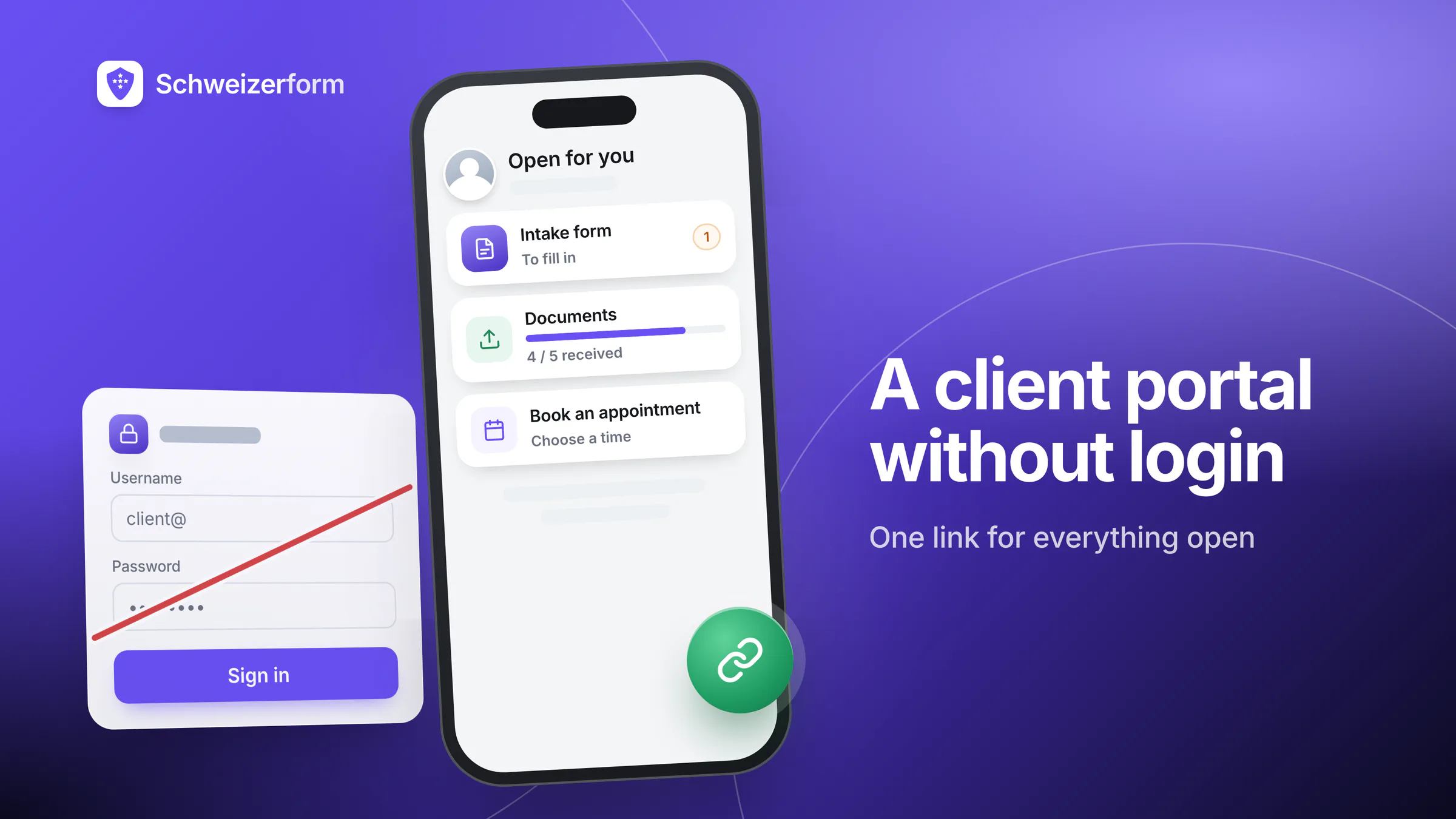
Sooner or later every small firm hears the same sentence from a client: “Can't you just send me one place where I see what you still need from me?” The obvious answer is a client portal. The less obvious problem is that clients rarely want another account, another password and another reset e-mail for a service they use twice a year. A client portal without login sounds like a contradiction, but for a small business it is often exactly the right size.
This article compares four ways to give clients that one place, says plainly what a link-based page can and cannot protect, and explains when a real login portal is the better choice. Towards the end it shows how the client page in Schweizerform works, including its limits.
What you will learn
What a client portal for a small business really has to do, how a full portal, a shared folder, e-mail threads and a personal link page compare, which security trade-offs come with link-based access, and which mitigations matter. For owners of practices, advisory firms, associations and other small Swiss organisations.
What small firms mean when they say “client portal”
Ask ten owners what they want from a client portal and the answers converge quickly. They do not want a second product to maintain. They want to stop answering the same questions by e-mail and phone.
- “What do you still need from me?” — one list instead of a chain of reminders
- “Which form do I have to fill in?” — the link is there, not buried in an old message
- “Which documents are missing?” — a clear checklist with what has arrived
- “How do I book the next appointment?” — without a phone call during office hours
Notice what is missing from this list: chat, a document archive, invoices, a news feed. Those are features of large portals. A small firm usually needs the narrow core: one place that shows the client what is still open.
Client portal without login or full portal? Four options compared
There is no universally right answer. The table shows the four common options side by side, judged from the point of view of a small firm and its clients.
| Option | Client needs an account? | Effort for the client | Shows what is still open? | Main weakness |
|---|---|---|---|---|
| Full client portal with login | Yes, plus password or sign-in code | High: register, confirm, remember, reset | Yes, and much more | Many clients never log in; you carry the support |
| Shared cloud folder | Often (or an open link to files) | Medium: find the right folder and file | No: it shows files, not open tasks | No list of what is missing; permissions drift |
| E-mail threads | No | Low at first, high over time | No: the list lives in your head | Scattered attachments, no overview, long chains |
| Personal link page | No | Low: open the link | Yes, open items only | The link is the key: whoever has it sees what is open |
Full client portal with login
A real portal knows who is logged in, can show history, messages and files, and can enforce stronger rules. That is its strength. The price is friction: a registration, a confirmation e-mail, a password the client forgets. For a client who needs you twice a year, the account is often forgotten before the next visit. The firm then answers “I can't log in” instead of the original question.
Shared cloud folder
A folder is quick to set up and familiar. But it answers a different question: it shows what exists, not what is missing. Clients still have to guess which file belongs where, and over the years the access rights of old folders tend to drift. A folder is a good place to keep files, not a good way to ask for them.
E-mail threads
E-mail needs nothing new and everyone can use it. It stops working when there are several open items: the current list is somewhere in a chain of replies, attachments land in inboxes, and nobody can say at a glance what is still missing. It is also the weakest place for sensitive attachments.
A personal link page
One link per client, one page behind it, showing only what is open for that person: forms to fill, documents to upload, an appointment to book. No registration, nothing to remember. The cost is a different security model, which the next sections discuss openly.
What a small business really needs from a portal
Before buying or building anything, write down the jobs the portal has to do. For a small firm the list is usually short.
- Show the client what they still have to do: open forms and questionnaires
- Show which documents are requested, and how many have arrived
- Let the client book an appointment that is still to be arranged
- Work on a phone, in the client's language, without installing anything
What it does not need
- Chat or messaging: a conversation tool is a second inbox you must watch
- A document archive: a place for files you keep for years is a different product with different duties
- Invoices and payments: your accounting already handles these
- A history of everything: the more a page shows, the more a leaked link reveals
A rule of thumb
Every extra feature in a client portal is also something that can be seen by the wrong person. A page that shows only open items is easier to protect than one that shows everything.
The security trade-off of link-based access, said plainly
A link page works because the link itself is the key. That has one consequence that should never be hidden: a link identifies, it does not authenticate. It tells the system which page to show, not who is holding the link. Whoever has the link sees what is open on that page. A password-protected portal can ask “who are you?”; a link cannot.
A leaked link is not harmless
If a link ends up with the wrong person (a forwarded e-mail, a shared mailbox, a screenshot), that person sees what is open on the page: for example the names of requested documents and how many have arrived. Treat the link like a key, not like a newsletter.
That is acceptable when the page shows little. It is not acceptable when it shows a lot. Under Art. 8 nFADP the firm has to protect personal data by appropriate technical and organisational measures; what is appropriate depends on what the page reveals. If the page would reveal sensitive details, choose stronger access.
Five mitigations that matter
- Show open items only. Never submitted answers, never past documents, never a history.
- Let links expire. A link that stops working after a set period limits the damage of an old e-mail.
- Make revoking and regenerating easy. If a link was sent to the wrong address, one click should kill it and create a new one.
- Send it to the right address. Check the address before sending; a typo in an e-mail address is a classic way for a link to go astray.
- Keep names neutral. The title of an open item should simply say “Salary certificate 2026” and reveal no more than the client needs to recognise it.
When a real login portal is the right choice
A client page is not a replacement for everything. Some situations need identity checks and a lasting relationship with an account.
- Clients need ongoing access to files over months or years, not a to-do list
- You have regulated client reporting or contractual duties that require named, logged access
- Several people on the client's side need different rights to the same material
- You exchange long, sensitive threads that must stay in one controlled place
Both models can coexist. Many firms use a full portal for a handful of clients with ongoing needs and a link page for everyone else. Choosing by client type is more honest than choosing one tool for all.
Setting up a client page process
Whatever tool you use, the process matters more than the product. These five steps work with any link-based page.
- 1
List what you ask for
Write down the forms, documents and appointments you request from a typical client.
- 2
Decide what the page may show
Open items only. Choose neutral item names and avoid prefilled personal details.
- 3
Set a lifetime
Pick an expiry that matches the project: weeks for a short job, months for a longer one.
- 4
Send it deliberately
Use a mail program you control, check the address, and tell the client the link is personal.
- 5
Close it when done
When the work ends, revoke the link. An old link serves no one.
How Schweizerform does it: the client page
In Schweizerform, a client page is a personal page for one contact in your address book. It belongs to the Contacts module and is available on Pro and Business. There is no account, no password and no sign-in code: the client opens the link and sees what is open for them, in the contact's language.
- Open forms and assessments that you sent to this contact
- Document requests with progress such as “4 / 5 received” and the due date
- Booking links for an appointment still to be arranged; an appointment the client books from the page is then added to it
- Up to 100 items per page, in the branding of your form profile; the page is not indexed by search engines
You decide how long a page lives: 30, 90 or 365 days, or no expiry; the default is 90 days. You can revoke a page, which stops it at once, or regenerate it, which kills the old link and creates a new one. The page shows open items only: a client never sees answers that were already submitted.
| What | Protection on the client page |
|---|---|
| Item titles, links and secrets | Encrypted so that only the link shows what is open; the secret is part of the link after the “#” and is not sent to the server |
| Which contact the page belongs to | Stored as a blinded reference, not as a name |
| Expiry and revoked status | Readable by the server, needed to switch the page off |
| Submitted answers | Never shown on the page; they stay encrypted under your Vault key |
The link is sent by you, from your own mail program: copy it, or open a draft. Client pages carry a secret, so Schweizerform does not send them for you. Contacts are limited per plan (Free 5, Pro 100, Business 2,500), and the client page itself needs Pro or Business.
What it does not do
- It is not an account: the link identifies the page, it does not verify who is holding it
- A leaked link is not harmless: it shows what is open, including file names and progress of a document request, and the prefilled answers of a prefilled link
- No chat, no document archive, no invoices: the page shows open work only
- The page sends no reminders of its own and has no visit counter; resending the link is a manual step
- Only appointments booked from the page appear on it, and there is no Google or Outlook calendar sync
Common mistakes and short answers
Is a link page less safe than a login portal?
It is a different model. A login portal can check who is asking; a link page cannot. In return, a link page can show far less, and it removes the weak spot of reused or forgotten passwords. For a list of open items that is often the more proportionate choice.
Can I put everything on the page to be helpful?
No. The more a page shows, the more a wrong recipient learns. Keep it to open items, and keep names neutral.
Should I send the link by e-mail, or is there a safer way?
E-mail is the practical default. Make it safer by checking the address, setting a sensible expiry and revoking links once the work is done. For highly sensitive matters, agree a separate channel with the client first.
Pick the portal that fits the client
A client portal does not have to be a product; it can be a page with a short list. For many small Swiss firms the useful part is small: what is still open, in one place, without another password. Where the relationship is long and the material sensitive, a login portal remains the right choice.
Whatever you choose, treat links as keys, show only what must be seen, and close what is finished.
A first step
List the open items of one typical client and decide which of them a page could show. Then read how personal links to document requests work, how to keep client contact data under the nFADP, and how digital client onboarding fits together. See features, security and pricing for the plans.
Disclaimer: This article is general information and marketing content, not legal advice. It simplifies the nFADP (Art. 6 and 8) and does not cover professional secrecy rules for particular professions. Responsibility for data protection remains with your organisation; consult a qualified professional or your association before relying on it.